
Two-factor authentication enhances security by adding an extra layer of protection, making it difficult for somebody else to sign in as you. When two-factor authentication is turned on, end users are asked to enter a passcode after entering their password when signing in.
OpenNebula Support Portal users can get the passcode either from an email sent to the individual user or distribution list email address, or from a two-factor authentication app installed on their mobile device.
If two-factor authentication is required, you'll be prompted to set it up when you sign in. Even if it's not a requirement, you can still set it up for your own use.
This article covers the following topics:
Turning on two-factor authentication
If two-factor authentication isn't required, you can turn it on for your own use. After you turn it on, you'll be prompted for a passcode every time you sign in.
To turn on two-factor authentication
- Click your profile icon on the upper-right side of any help center page, then click Profile to display your profile.
- Click Edit profile.
-
Click Manage 2FA.

-
Click Set up 2FA.
The following dialog appears, prompting you to select your preferred method for receiving passcodes.
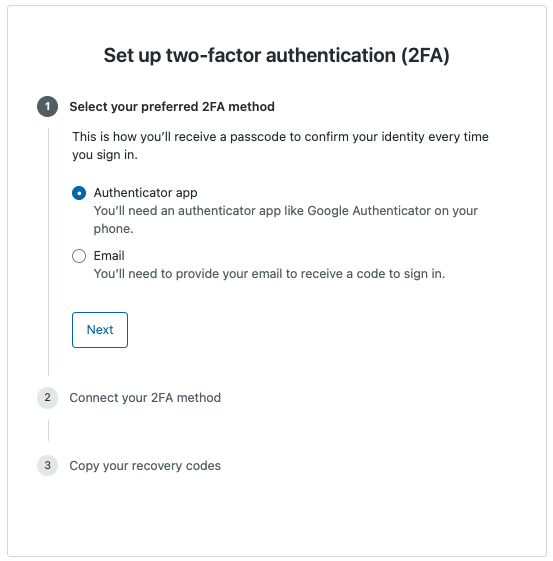
- Continue to the sections below, depending on how you'd like to receive passcodes.
We recommend you to choose "Email" as your preferred method to receive your passcode, especially when using a Distribution List email address as the Portal User Account
Receiving passcodes through email
If you'd like to receive passcodes through email, you must provide the email address where you'd like them sent.
To receive passcodes through email:
- Select Email in the Set up two-factor authentication (2FA) dialog, then click Next.
This dialog appears after turning on 2FA, or upon sign-in when 2FA is required. - Enter the Portal User email address, then click Send passcode.
An email will be sent to the email address shortly. - Enter the code sent to you, then click Next.
Email passcodes for 2FA are valid for 60 seconds. - Click Copy recovery codes and save them in a safe location. If you lose your phone or can't get a passcode, you must use a recovery code to sign in.
- Click Done.
Receiving passcodes through an authenticator app
To use an authenticator app to receive passcodes, you must install a two-factor authentication app on your mobile device. Two-factor authentication apps include Google Authenticator, Authy, Microsoft Authenticator, Symantec VIP, and Duo Mobile. The app displays a valid passcode on the opening screen. You typically get 30 seconds to use it before it expires, then the app displays a new passcode.
To configure an authenticator app to receive passcodes:
-
The Set up two-factor authentication (2FA) page displays after turning on 2FA, or upon sign-in when 2FA is required. Click Next to confirm you've installed an authenticator app on your mobile device.
You are directed to the Connect your 2FA method step.

-
Start the two-factor authentication app on your device, select the option to add an entry, and point your device's camera at the QR code (the blocky square) on the Zendesk dialog in your browser window.
The mobile app might refer to this action as Scan Barcode.
The app should automatically scan the QR code and generate a passcode. If you have trouble scanning the QR code, you can manually enter the secret key that's provided. Scanning the barcode is a one-time-only step.
- Enter the passcode generated by the app, then click Save.
- Click Copy recovery codes and save them in a safe location. If you lose your phone or can't get a passcode, you must use a recovery code to sign in.
From now on, when you sign in, you can get a valid passcode by simply opening a two-factor authentication app on your device. The app displays a valid passcode on the opening screen. The app doesn't need an internet connection to display valid passcodes.
Using and getting more recovery codes
If you lose your phone or can't access your device, you can use one of your recovery codes to access your account again. When prompted for a passcode at sign-in, enter one of your recovery codes. You can only use each code once.
If two-factor authentication is required and you lost or used all of your recovery codes, you lost the access to your account.
Please contact support@opennebula.io requesting a password reset.
Comments
Article is closed for comments.